


Hugging Face is a platform where developers and researchers publish AI models, datasets, and applications. Here you can find a tool for your task, try an available demo right in your browser, or pick a model for your own project.
This guide will help you understand the main sections of the platform and choose your first practical step. A browser is all you need to get started -- there's no need to install Python, buy a GPU, or learn how neural networks are trained beforehand.
This material is based on official documentation verified as of September 28, 2026. The usage scenarios described here were not tested by running them live; check the availability of specific apps, account requirements, and pricing before use.
What Is Hugging Face
Hugging Face is both the name of the company and the platform it built. Its central component is called the Hub -- a shared space for publishing models and working with them. Developers upload files, descriptions, and examples, while other users can explore and discuss these projects. Teams can also keep private projects. Hub documentation.
If you're familiar with GitHub, the structure will feel familiar: a project has an author, a description page, files, and a change history. Hugging Face's specialty is machine learning. Alongside code, you'll find trained models and the data used to test or train them.
💡 A model is a trained system that performs a task -- recognizing speech or generating images, for example. Weights are the numerical parameters produced during training. The software that runs a model needs these weight files. Downloading them alone usually isn't enough to get a working application.
A casual visitor typically comes here to try someone else's work. An app developer looks for a suitable model. A researcher publishes results or finds datasets. You can start in the simplest role: as a visitor looking for a specific tool.
Main Sections: Where to Go With Your Task
| Section | What's inside | When it's useful |
|---|---|---|
| Models | Model pages with descriptions and files | Finding a model for text, speech, images, or another task |
| Datasets | Collections of examples: text, images, audio, and more | Selecting data to train or test a model |
| Spaces | Apps and demos built by project authors | Trying an available tool right in your browser |
| Collections | Curated groupings | Saving several relevant projects together |
In Models, you can search by task -- text-to-image generation or speech recognition, for example. Some model pages include a field for a quick trial query. This widget depends on provider support, so it isn't available for every model. How widgets work.
In Datasets, you can search by language, task type, and license. Many datasets let you preview examples directly on the site, which helps you understand the content before downloading. Datasets documentation.
In Spaces, authors showcase their applications. The interface can be as simple as uploading an image, typing a prompt, clicking a button, and getting a result. Its capabilities and limits are set by the individual project. Spaces overview.
Collections come in handy once you've found several projects worth keeping track of. For example, you could group speech-transcription models together with their related demos into one themed collection.
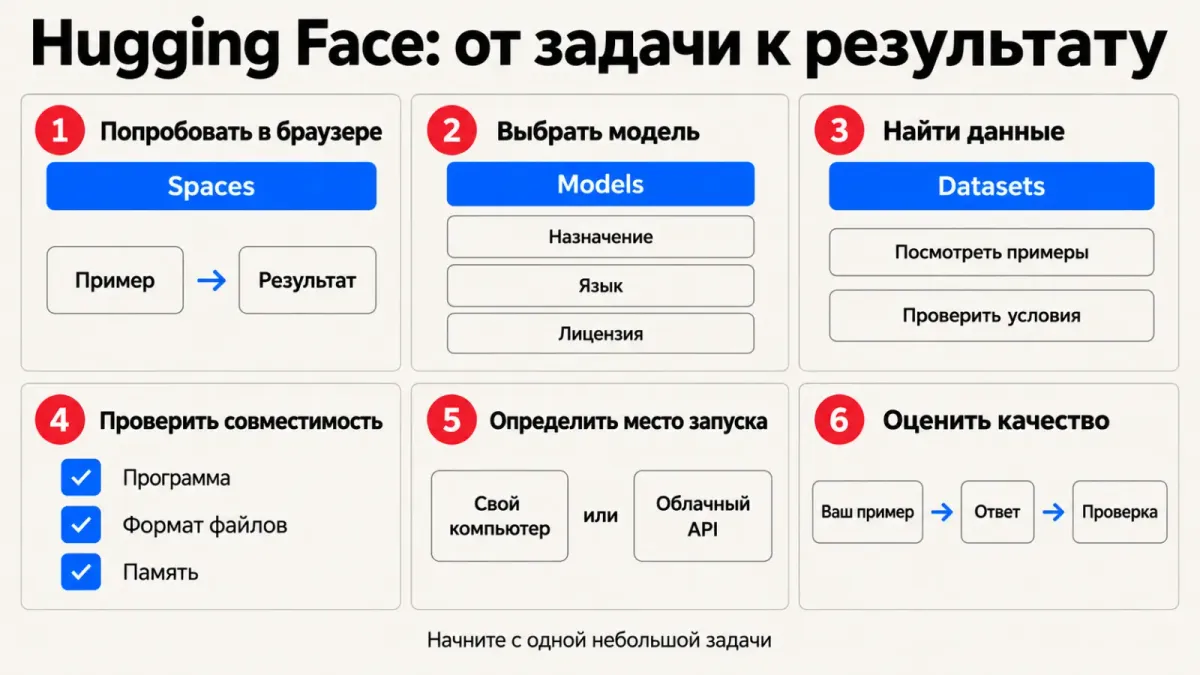
Your First Visit: Try One Available Space
For your first experience, pick a small task whose result you can evaluate yourself -- transcribing a short recording of your own voice, for instance, or generating an image from a simple description.
- Open the Spaces catalog and search by task. For speech, try "speech recognition"; for image generation, try "text to image."
- Read the description: who's the author, what does the app accept, and what does it return? Check whether the underlying model or project is specified.
- Start with the built-in example if there is one. For your own test, use a short piece of text or a file you're comfortable sharing with a third-party service.
- Wait for the app to load and run it according to its instructions. You may need to sign in, and there may be a queue or temporary downtime.
- Compare the result against your original task. For a transcription, check words and names; for an image, check the objects and details from your prompt.
A successful first attempt means getting a result and understanding how well it fits your needs. Save the link to the Space along with your test input -- it'll make comparing another tool later much easier.
If an app fails to load, that says nothing about the quality of the underlying model. Check the error message and try a different Space for the same task. Demo availability changes independently of whether the model files themselves exist.
⚠️ A public Space may have been built by a third-party author. Don't upload client documents, passwords, or other people's personal records for your first test. Open-source code alone doesn't tell you where an app sends your data or how long it's retained.
What to Read on a Model Card
A model's page usually includes a description called a Model Card. It helps you understand the model's purpose, limitations, and intended usage. How thorough it is depends on the author. Run through a quick check before downloading anything. How Model Cards work.
- Author and origin. Is this the developer's original model, a fine-tuned version, or someone else's repackaging? Check for links to the original.
- Task and language. Does the model fit your intended use, and is there information about how it handles your language?
- License and access. Look for the usage terms. Sometimes you need to accept the author's conditions or wait for approval before getting the files. See licenses and gated models.
- How to run it. What software and libraries are listed? Is there a ready-made demo or a supported cloud-hosted option?
- Requirements. Check the file format and memory recommendations. Download size doesn't equal the total memory you'll need to run it.
- Limitations and evaluation. See what tasks the author tested the model on. A high download count signals popularity, but it doesn't replace testing with your own examples.
By the end of this reading, you should be able to explain what the model is for, where to run it, and what else needs checking. If you can't answer those questions, keep it as a candidate to research further -- you don't need to download large files right away.
Useful Scenarios
Testing Russian Speech Recognition
Task: Find out whether a tool works well enough for rough transcriptions of your notes. Prepare a short recording of your own voice (nothing confidential) plus a few phrases you can check against.
Find a speech-recognition Space that claims support for the language you need. Upload your recording if the format is supported, and compare the resulting text against the audio. Note errors in names and any missing words.
Result: a sample transcript and a list of errors. A good result on one recording doesn't tell you how the tool will handle a long meeting, background noise, or multiple speakers.
Evaluating an Image Generator Before Installing Anything
Task: Determine whether a model fits your illustration needs. Prepare one specific prompt -- for example, "a ceramic cup on a wooden table by a window, soft daylight."
Find an available demo in Spaces and use the same prompt across several variations. Compare how well the results match your prompt, along with the details and overall style. Note the model name if the author lists it.
Result: several samples to help you choose a tool going forward. Demos may have resolution limits, queues, and their own settings. A resulting image doesn't confirm the terms for commercial use -- check those separately.
Choosing a Text Model
Task: Find a candidate for summarizing Russian-language texts. Prepare a few open-source texts and your requirements: response length, keeping names intact, no invented facts.
Search Models for suitable text models, review the cards, and pick an available way to test them. If there's a working widget or a linked Space, use the same texts across candidates. If no demo exists, save the model for a later stage involving a local app or API.
Result: a short shortlist of candidates with a clear way to verify them. A confident-sounding answer doesn't prove accuracy -- always check summaries against the source.
How to Use a Model in Your Own Project
After you've gotten familiar with the platform, there are usually two paths forward.
Running it locally. You download a supported model and run it through compatible software or a library. Hugging Face stores the files; your own device does the computing. The model format, the software, and your available memory all need to match up. Details on getting files are in the model download documentation.
Using a cloud API. An API is a programming interface: your app sends a request and gets back a result. Inference Providers offers a unified way to call supported models hosted by different compute providers, with client libraries for Python and JavaScript. A model being listed on the Hub doesn't mean it's available through this API. Inference Providers documentation.
For authenticated requests, you'll use an access token created in your Hugging Face settings. Choose the minimum permissions needed, and store the token in an environment variable or a dedicated secrets manager. Never paste it into public code or messages. Access tokens.
For your own interface, you can use Spaces -- for example, with Gradio, a tool for building web interfaces for models. This is a later stage: you'll need to decide how to run it, handle access, and manage costs. Getting familiar with the platform doesn't require building your own app.
What's Free and Where Costs Come In
Public pages let you explore projects without buying a compute server. The platform has free features alongside paid plans, and running models can incur separate charges. Check current Hugging Face pricing before committing to anything.
Keep four things separate: file access, license terms, compute, and storage. Being able to download the weights tells you nothing about the cost of cloud-based inference or your rights to a specific use case.
As of this writing, the Spaces documentation states that static Spaces are free, while running Gradio and Docker apps on compute resources typically requires a paid plan. There's an exception for eligible free personal accounts, offering a limited number of Gradio Spaces on ZeroGPU. Confirm the terms in the Spaces documentation right before creating anything.
For a first look, it's enough to open an available demo and test it with something safe. Once you have a recurring task, it'll be easier to choose your next step: another Space, a local app, or an API integration.